Blog - Generating and Adding an SSH Key to GitHub
Generating a new SSH key
You can generate a new SSH key on your local machine. After you generate the key, you can add the public key to your account on GitHub.com to enable authentication for Git operations over SSH.
-
On Mac/Linux, open terminal. On Windows, open Git Bash.
-
Paste the text below, replacing the email used in the example with your GitHub email address.
ssh-keygen -t ed25519 -C "your_email@example.com"This creates a new SSH key, using the provided email as a label.
> Generating public/private ed25519 key pair.When you’re prompted to “Enter a file in which to save the key”, type in
~/.ssh/id_ed25519_data120and then press Enter.> Enter a file in which to save the key (/home/YOU/.ssh/id_ALGORITHM): ~/.ssh/id_ed25519_data120[Press enter] -
At the prompt for passphrase, press Enter twice to leave it empty (no passphrase).
> Enter passphrase (empty for no passphrase): [Press enter]
> Enter same passphrase again: [Press enter]
Adding a new SSH key to your account
-
Copy the SSH public key to your clipboard.
$ cat ~/.ssh/id_ed25519_data120.pub
# Then select and copy the contents of the id_ed25519_data120.pub file
# displayed in the terminal to your clipboard
Tip
Alternatively, you can locate the hidden
.sshfolder, open the file in your favorite text editor, and copy it to your clipboard. -
In the upper-right corner of any page on GitHub, click your profile picture, then click Settings.

-
In the “Access” section of the sidebar, click SSH and GPG keys.

-
Click New SSH key or Add SSH key.
-
In the “Title” field, add a descriptive label for the new key. For example, if you’re using a personal laptop, you might call this key “Personal laptop DATA120”.
-
Select authentication key.
-
In the “Key” field, paste your public key.
-
Click Add SSH key.
-
If prompted, confirm access to your account on GitHub.
Telling SSH to use your new key
Because the key has a custom name, SSH won’t find it automatically. You need to add it to your SSH config file so it’s used whenever you connect to GitHub.
-
In your terminal (or Git Bash on Windows), run the command below. It creates the config file if it doesn’t exist yet and adds an entry for GitHub to the end of it.
printf "\nHost github.com\n IdentityFile ~/.ssh/id_ed25519_data120\n" >> ~/.ssh/config -
Check that the entry was added.
$ cat ~/.ssh/config # You should see: # Host github.com # IdentityFile ~/.ssh/id_ed25519_data120 -
Test your connection to GitHub.
ssh -T git@github.comThe first time you connect, you may see a message asking if you want to continue connecting. Type
yesand press Enter. If everything is set up correctly, you’ll see a message like this:> Hi USERNAME! You've successfully authenticated, but GitHub does not provide shell access.
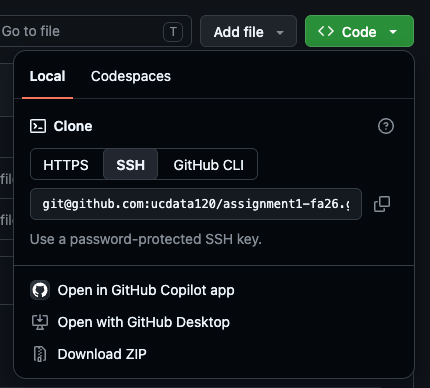
Important Note: When cloning repositories
Ignore the previous note to use HTTPS when cloning, you should instead use SSH. Make sure to select the SSH tab after clicking the code button.
Citations
- GitHub Docs: Connecting to GitHub with SSH, https://docs.github.com/en/authentication/connecting-to-github-with-ssh/